

Overview
Cash payments allow customers without bank accounts or cards to pay at physical locations like convenience stores, pharmacies, and payment centers.Coverage
10,000+ locations
Processing
Up to 72 hours
No Bank Needed
Perfect for unbanked
How It Works
The cash payment flow is simple: you create a payment request, we generate a voucher, the customer pays in cash at a physical location, and you receive a confirmation webhook.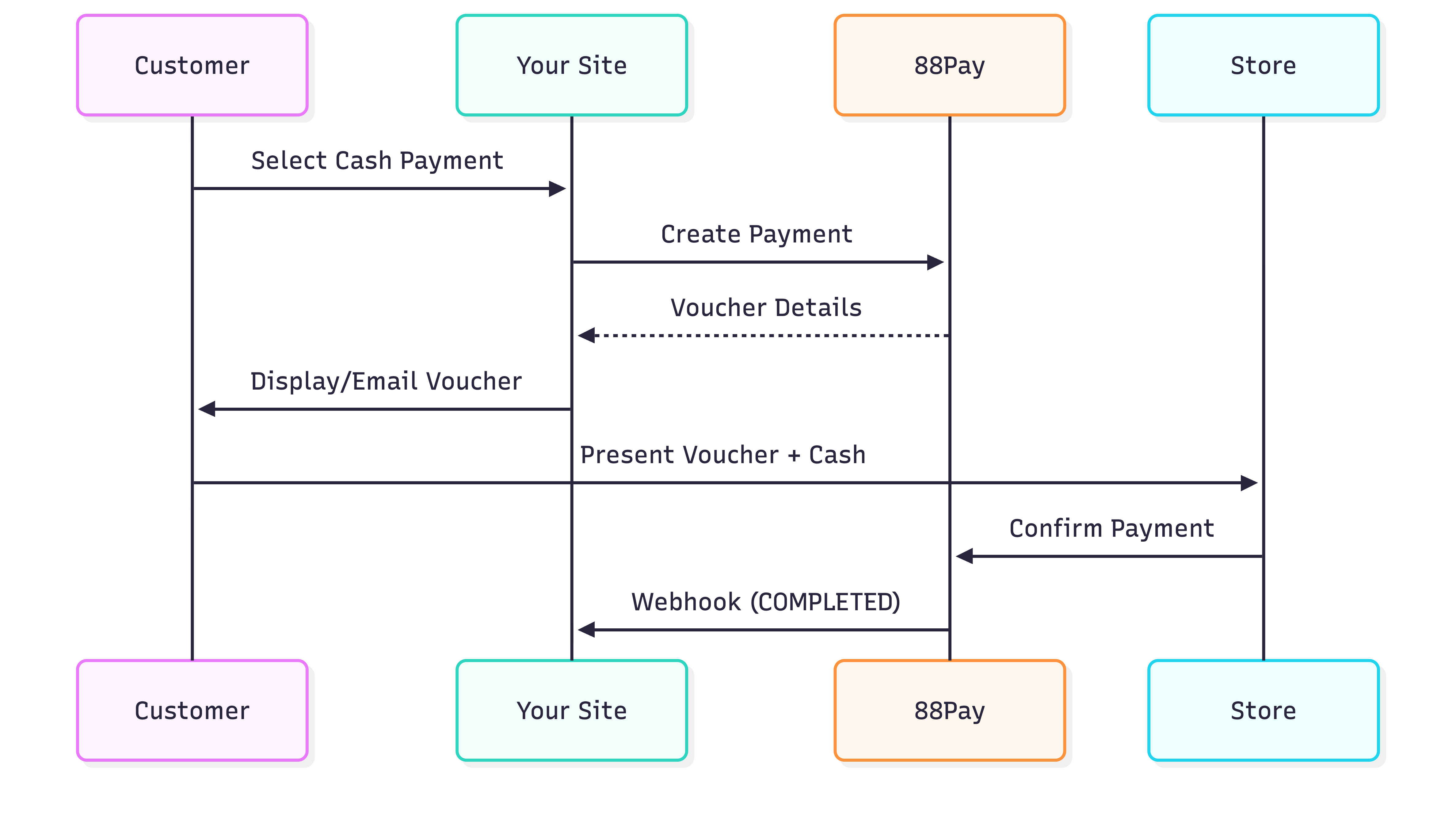
Creating a Cash Payment
API Request
API Response
No return_url needed - the customer doesn’t leave your site. Display the voucher inline or send it via email.Displaying the Voucher
You have two main options for presenting the payment voucher to your customer:Option 1: Inline Display
Show the voucher directly on your confirmation page. This is ideal for desktop users or when you want to keep the customer on your site.Option 2: Email Voucher
Send the voucher via email. This is essential for mobile users and ensures customers don’t lose the voucher.Customer Payment Process
Once the customer has the voucher, here’s what happens:Customer Receives Voucher
The voucher includes:
- Payment code (as barcode and numbers)
- Exact amount to pay
- Expiry date
- Step-by-step instructions
Customer Visits Location
Customer goes to any authorized payment location (convenience store, pharmacy, payment center)
Present Payment Code
Customer shows the barcode (cashier scans) or provides the numeric code (cashier enters manually)
Handling Webhooks
You’ll receive webhooks at different stages of the payment lifecycle:- PENDING
- COMPLETED
- REJECTED
Voucher Expiration
Cash vouchers expire 7 days after generation by default.Managing Expiration
Send proactive reminders to improve conversion:Handling Expired Vouchers
Testing in Sandbox
In the sandbox environment, cash payments are simulated for easy testing:Best Practices
Always Email the Voucher
Always Email the Voucher
Customers may close their browser or navigate away. Email ensures they can access the voucher later.
Send Expiry Reminders
Send Expiry Reminders
Proactive reminders significantly increase completion rates.
Provide Clear Instructions
Provide Clear Instructions
Show step-by-step payment instructions in the customer’s language. Include:
- Where to pay (store names they recognize)
- What to bring (voucher, ID if required)
- Exact amount to pay
- Expiry date and time
Handle Partial Payments
Handle Partial Payments
Some payment networks allow partial payments. Monitor webhooks for partial payment notifications and request the customer pay the remaining balance.
Offer Numeric Code Fallback
Offer Numeric Code Fallback
Barcodes occasionally fail to scan. Always display the numeric code so cashiers can enter it manually.
Troubleshooting
Webhook not received after customer paid
Webhook not received after customer paid
Possible causes:
- Webhook endpoint is down or unreachable
- Payment is still processing (can take up to 72 hours)
- Network connectivity issues
- Query transaction status via API using the reference ID
- Check webhook logs in your dashboard
- Verify your webhook endpoint is accessible and returning 200 OK
- Contact support with the transaction reference
Barcode won't scan at store
Barcode won't scan at store
Solutions:
- Provide the numeric payment code for manual entry
- Ensure PDF quality is high (300 DPI minimum)
- Check that barcode format is compatible with the payment network
- Customer can show the code on their phone screen
Customer paid wrong amount
Customer paid wrong amount
Common scenario: Customer paid less than the required amountSolutions:
- Some networks accept partial payments - check webhook data
- Customer must return to pay the remaining balance
- Generate a new voucher for the difference
- Update order status to reflect partial payment
Customer can't find a payment location
Customer can't find a payment location
Solutions:
- Provide a location finder URL in the voucher
- List the most common store chains in the area
- Offer alternative payment methods if no locations nearby
Next Steps
Webhooks Guide
Learn how to handle payment notifications
Payment Methods
Explore country-specific networks and limits
Testing Guide
Test cash payments in sandbox
API Reference
Complete API documentation